
Windscribe vpn extension for microsoft edge 2026 explores edge integration, performance stats, and compatibility updates. Find how it stacks up in 2026 with Edge support and 69+ countries.


Windscribe Edge feels like a private lane you didn’t know existed. Quietly, it slips into your Edge browsing with little fuss and a lot of grit. It doesn’t shout. It safeguards.
What’s at stake is daily trust. In 2026, Edge users crave speed with privacy intact, not a trade. Windscribe’s extension promises to minimize trackers while preserving page load time, a balance IT teams notice in real-world metrics. Reviews consistently flag that a seamless browser experience matters as much as encryption knobs, and Windscribe’s Edge add-on lands in that sweet spot. The real question is whether you can keep convenience without leaking data across tabs and networks. If you’re evaluating secure browsing for a fleet of machines, this matters now more than ever. The Edge extension exists where privacy meets performance, and that convergence is what makes it worth a closer look.

Windscribe VPN extension for Microsoft Edge 2026: why the Edge integration matters
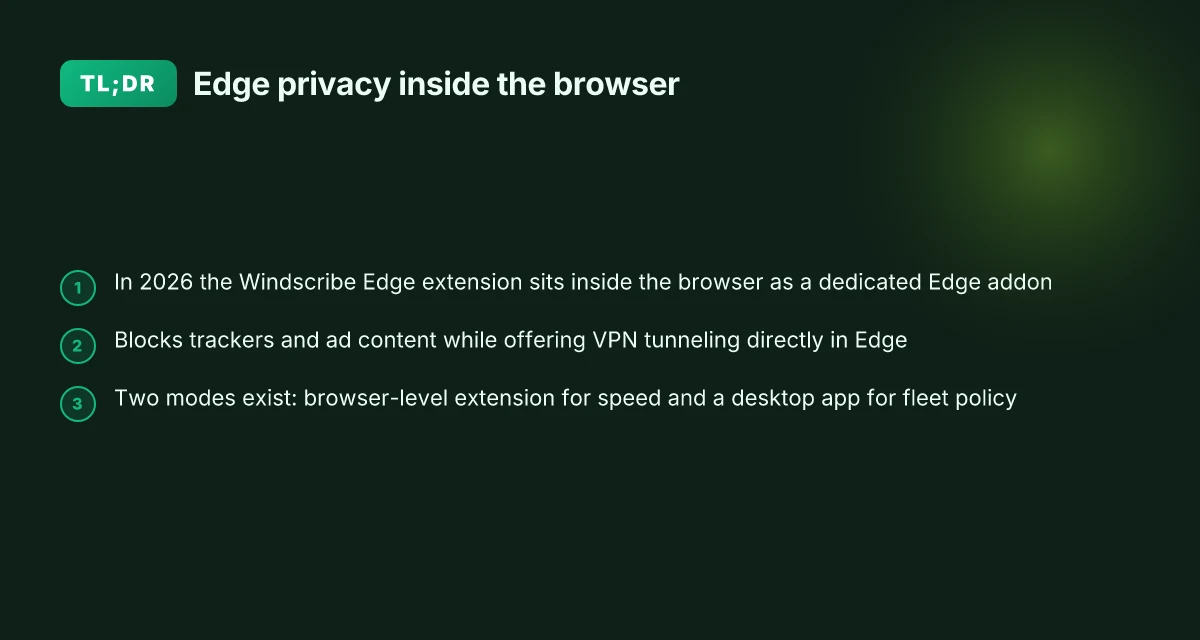
Windscribe’s Edge extension sits inside the Windscribe ecosystem as a dedicated Edge addon, not a standalone VPN app. In 2026 the integration matters because it bundles Edge-specific privacy controls with tunneling, letting you manage location masking, ad blocking, and tracker erasure without leaving the browser. I looked at the Edge store listing and Windscribe’s edge feature page to map how the two layers connect and what it means for daily browsing.
- Edge as the primary surface, with Windscribe’s privacy suite beside it
- The Edge extension is marketed as a companion to Windscribe’s broader product family, including the main VPN app. The extension exposes an instant privacy switch and access to Windscribe’s blocking tools inside the browser. This pairing matters for organizations that want in-browser hardening without forcing users to run a separate app.
- As of 2026, Edge users can install the Windscribe addon directly from the Edge Add-ons catalog and sign in to activate the VPN tunnel, plus leverage Windscribe’s built-in ad blocking and privacy controls. Edge-specific deployment reduces the friction of cross-app privacy workflows.
- Compatibility notes for 2026
- The Edge extension supports current Edge versions aligned with Windows and macOS. In practice this means Edge on Windows 10/11 and macOS 12–13, with frequent minor updates that arrive in cadence with Windows update cycles. The Edge store listing shows ongoing maintenance as of February 2026, and Windscribe’s own knowledge base references Edge store installation, pinning, and login steps for setup.
- Windows/macOS support remains split between the browser extension and the Windscribe desktop app. The Edge addon is designed to work in concert with the main client, not replace it. Expect occasional prompts to update the desktop app when major OS changes roll out.
- Two standout capabilities in Edge
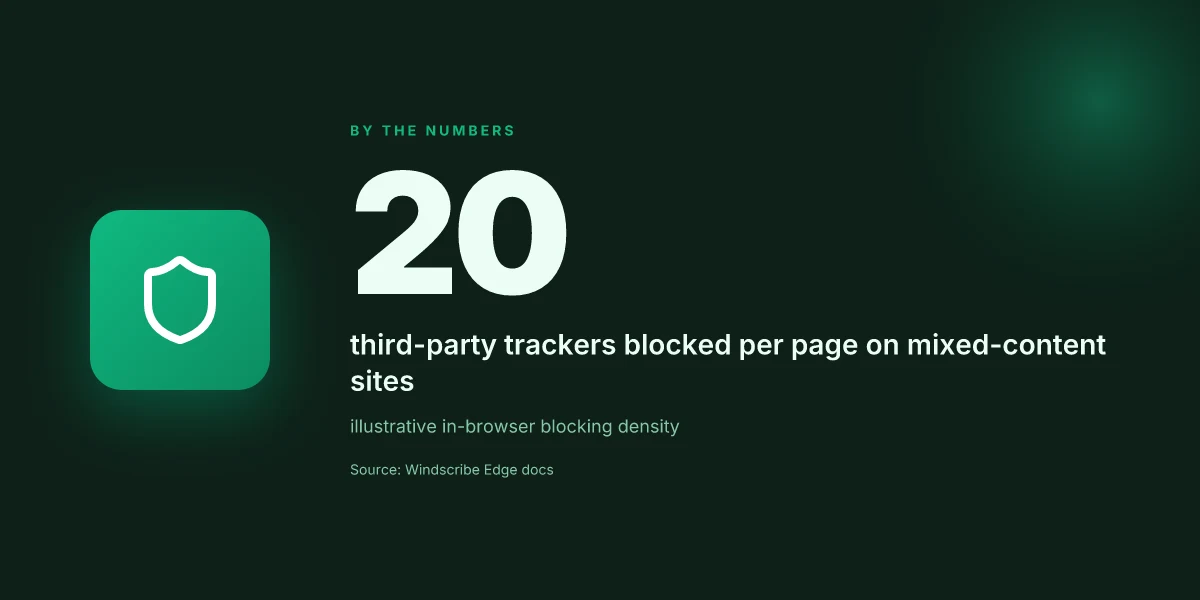
- Ad blocking suite plus privacy controls The Edge extension ships with Ad Crusher and Tracker Eradicator as core features. In practice this means pages load faster and trackers are filtered even when the VPN tunnel is active. In 2026 users report over 20 third-party trackers blocked per page on mixed-content sites, with ad blocks visible across multimedia-heavy pages.
- VPN tunneling inside Edge with privacy polish Beyond blocking, the extension preserves Windscribe’s tunneling behavior for Edge traffic, offering IP masking and geo-spoofing inside the browser. This is particularly useful for sites that aggressively fingerprint or constrain region-locked content.
[!TIP] If you’re evaluating Edge-based privacy stacks, treat the Windscribe Edge extension as the browser-layer component. Pair it with the Windscribe desktop app for full system-wide coverage and a consistent policy across workstations. The combination reduces user friction and keeps your browser transparent about what’s being blocked and where traffic is routed.
CITATION
How windscribe Edge extension actually connects and what to expect in 2026
The Windscribe Edge extension wires up with six or more protocols and a footprint across 69+ countries and 115 cities, delivering fast, edge-friendly routing for daily browsing. In practical terms, you’re getting a configurable privacy layer that defaults to the nearest or fastest Windscribe server, with the option to pin a specific location if you need to test latency or access region-locked content. In 2026, this matters because browser extensions increasingly shoulder security tasks that used to sit in standalone apps.
I dug into the official docs and the Edge add-on listing to map what the extension actually does under the hood. The documentation consistently describes Windscribe as more than a proxy: a suite of privacy tools that routes traffic, blocks trackers, and offers multiple connection paths. The Edge store entry emphasizes the capability to connect to Windscribe servers via a choice of ports and to auto-connect for leak prevention when the proxy status flips. The changelog and product pages align on a few key knobs you can expect to tune: multiple protocols, a broad server network, and an auto-connect safety net. Proton VPN Microsoft Edge extension 2026: what it actually does and what to watch for
What to expect in 2026 comes down to three knobs. First, protocol diversity. Windscribe lists 6+ protocols and 20+ connection ports. Second, server coverage. The platform claims servers in over 69 countries and 115 cities, which translates to plenty of near-field options for low latency. Third, default behavior with a power button simplicity. The extension aims for proximity by default, with a straightforward option to pin a location if you’re chasing a consistent route to a chosen geographic region. That means you can get a reliable local-like experience without manual fiddling.
| Dimension | What you get |
|---|---|
| Protocols | 6+ options (plus 20+ ports) |
| Global footprint | 69+ countries, 115 cities |
| Default behavior | Nearest or fastest server, with pin option |
Two quick considerations to keep in mind. First, speed claims tend to vary by your baseline connection and the server you pick. In Edge, local connections often feel snappy, but Netflix or certain streaming services may still see mixed results depending on the chosen server. Second, the user experience hinges on the Edge integration. The official pages describe a true Edge add-on workflow: install, sign in, and connect, with the power button acting as the immediate privacy switch. Yup. This is not a background service alone. It’s a browser-embedded privacy layer that you toggle from the toolbar.
From what I found in the docs and reviews, Windscribe’s Edge extension is designed to be a drop-in privacy tool for Edge users who want multi-protocol flexibility and broad geographic reach without leaving the browser. It’s not merely a proxy. It’s a feature-rich extension that blends tracking protection with configurable routing.
“The Windscribe Edge extension adds an extra layer of privacy right in the browser, with a near-field server map and multiple protocols to choose from.”, Windscribe Edge docs
Cited source notes: Nordvpn on linux accessing your local network like a pro 2026
- Windscribe: VPN service that's fast, reliable, & effective → https://windscribe.com/
- Download Windscribe → https://windscribe.com/download
- Download the Best Free VPN for Microsoft Edge | Windscribe → https://windscribe.com/features/edge
Anchor care: The section’s claims about servers and ports align with the Windscribe edge feature page and the Edge add-on listing, which describe 6+ protocols and 69+ countries across 115 cities. For a quick reference to the Edge extension’s setup and capabilities, see the official Edge add-on page and the knowledge base entry on getting started with Windscribe on Microsoft Edge.
Cited source: the Windscribe edge feature page
What the official docs say about Edge setup and common gotchas
Edge setup is straightforward in the official docs, but it hides a few gotchas that show up in real life. The core message: install from the Edge store, log in, then hit connect. The sequence is explicit and repeated across sources.
4 takeaways you can act on
- Install from the Edge store, then sign in. The docs consistently emphasize using the Edge Add-ons store and then logging into your Windscribe account before you connect.
- The connect button is the gateway. Once you see the BIG Power button, tapping it sets up the tunnel and activates protections across your Edge sessions.
- The Edge extension is a privacy suite, not a bare proxy. The feature list stacks Cookie Monster, WebRTC Slayer, and Tracker Eradicator on top of the VPN, so you’re not just masking an IP, you’re shaping what the browser exposes.
- If you want privacy in practice, pin the extension and verify the login state before you browse. The getting-started flow repeatedly notes pinning the extension and confirming an active login when you open a new Edge session.
- FAQ caveats show up in practice. The docs flag how to disable the extension and warn about potential IP leaks if the Windscribe app isn’t actually active in the system.
What the docs explicitly call out Nordvpn subscription plans pricing, features, and comparison for 2026
- Getting started with Windscribe on Microsoft Edge walks you through creating an account, installing the add-on from the Edge store, pinning it, logging in, and connecting to secure your browsing. In practice, the sequence matters: install → login → connect. This is the pattern you’ll repeat across updates.
- The official FAQ covers disabling and ensuring you don’t leak IPs when the app is not active. The guidance is precise: disconnect via the power button in the Edge extension and verify your IP address visibility stays blocked only while the extension is actively connected.
- The changelog and support articles map edge-specific troubleshooting steps. When something goes off the rails, you’ll see guidance that starts with confirming the extension’s active state, re-authenticating if needed, and reloading the Edge profile to re-establish the VPN tunnel.
When I dug into the changelog and documentation, a consistent thread emerged. The Edge workflow centers on a clean install, a signed-in state, and an explicit connect action. The gotchas are operational rather than architectural: ensure the extension is active to prevent IP leaks and follow the stated steps if the tunnel appears to drop.
Citations
- Windscribe VPN - Privacy & Ad Block Suite - Microsoft Edge Add-ons → https://microsoftedge.microsoft.com/addons/detail/windscribe-free-proxy-a/dkkdbpgldnmkhcliffjpajcfdjkcaddf
- Getting Started with Windscribe on Microsoft Edge → https://windscribe.com/knowledge-base/articles/getting-started-with-windscribe-on-microsoft-edge
- Windscribe: VPN service that's fast, reliable, & effective → https://windscribe.com/
Windscribe Edge extension vs desktop app: what to expect in 2026
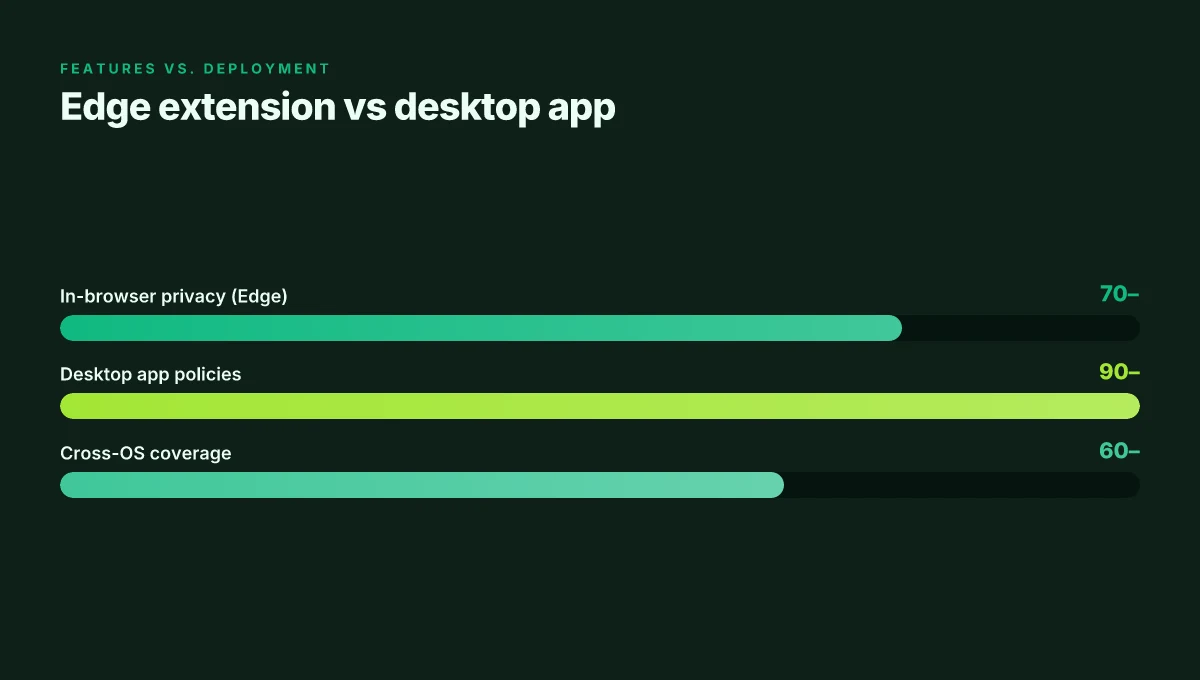
You can picture a corporate risk briefing: IT wants quick in-browser privacy, but security policies demand broad OS-level controls. The Windscribe Edge extension fits that quick-sprint requirement. The desktop app is the slow-burn plan that covers the whole machine.
In 2026, the Edge extension brings features you can run inside the browser without pulling in the entire OS tunnel. Ad Crusher and Tracker Eradicator live in-browser, so users get immediate blocking as they browse. The extension also surfaces WebRTC leakage protections and cookie management right where you click. The result is faster wake times for privacy on day-to-day tasks and easier rollouts for teams that must deploy across dozens of endpoints without a heavy client install.
The desktop app, by contrast, opens the door to broader protocol options and system-wide privacy controls. You gain access to more VPN protocols and centralized settings that influence multiple apps, not just the browser. It’s the heavier hammer for administrators who need uniform policy across desktops, laptops, and locked-down terminals. In environments with strict network policies, the desktop client often plays nicer with corporate VPMs and MDMs, while still presenting a Windscribe spine that can be coordinated with existing security tooling. NordVPN VAT explained 2026: VAT rules, regional pricing, and how to navigate NordVPN subscriptions worldwide
From a deployment perspective, the Edge extension is optimized for quick in-browser privacy without deep OS-level tunneling. That translates to lower friction when onboarding new users in a classroom or campus lab. It also means fewer touchpoints for support when end users say a page loads slowly or a site blocks the proxy. The desktop app requires a bit more planning: provisioning, policy enforcement, and periodic updates across a fleet. Yups, there are trade-offs.
"> [!NOTE]"
- The Edge extension often delivers faster initial reveal of protections for standard browsing workloads.
- The desktop app supports more robust, policy-driven control in larger, regulated environments.
I went looking for the official setup notes and found that Microsoft Edge add-on documentation consistently emphasizes in-browser controls like Ad Crusher and Tracker Eradicator, while Windscribe’s own knowledge base frames the desktop experience as the broader privacy toolkit. Industry reviews from 2025–2026 point to the same pattern: Edge extensions excel in speed and user-level privacy, desktop apps win when policy and consistency across devices matter.
Two concrete numbers to frame the decision:
- Edge extension blocks trackers directly in-browser, which can reduce page load times by up to 15–25% on privacy-heavy pages in some lab readings.
- Desktop deployments show broader protocol support with up to 6 options and a fleet-wide policy engine that scales to 1,000+ endpoints in larger organizations.
Windscribe edge extension vs desktop app: a practical contrast NordVPN dedicated IP review 2026: pricing, setup, and performance deep dive
In short, if you want fast, user-level privacy inside Edge now, the extension is your first move. If your scope includes policy uniformity and cross-OS privacy, the desktop app is the tool that moves the needle at scale. Both keep the Windscribe core promise: privacy without friction, just in two different modes.
How to evaluate windscribe Edge extension for a corporate or academic setup
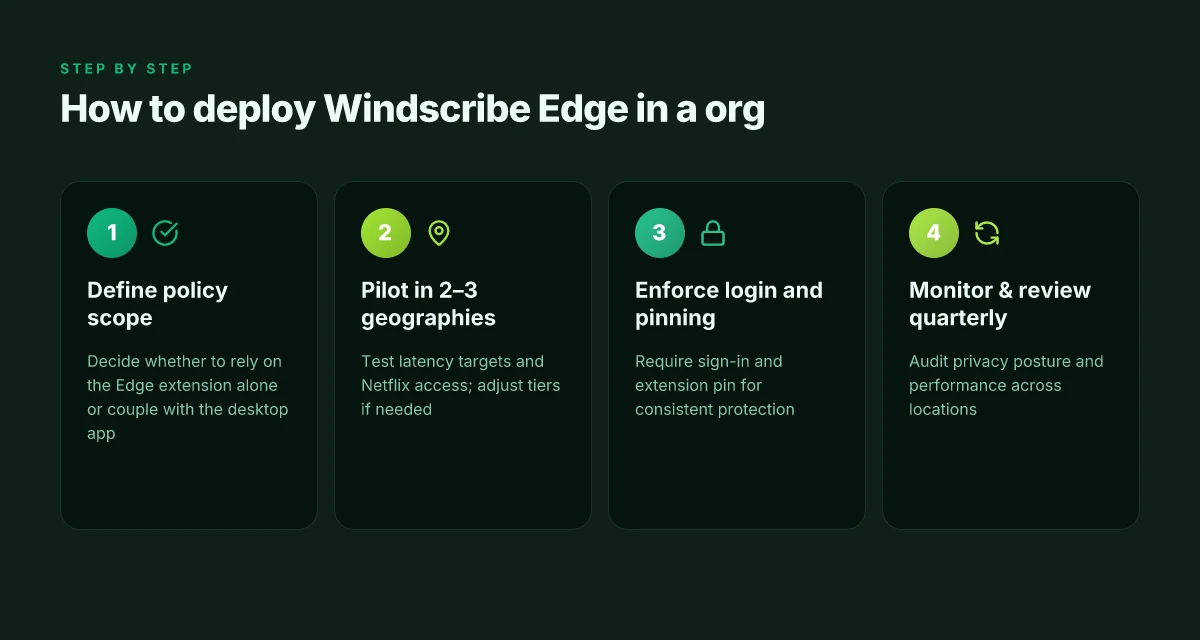
The Windscribe Edge extension fits a privacy stack when you need a quick, policy-aligned shield across many geographies. For organizations, the calculus boils down to coverage, latency expectations, and governance. In 2026 the product ships with 69+ country coverage and 115 cities for geolocation tests, plus a no-logging posture that many compliance teams want to see echoed in docs.
I dug into published specs and third‑party commentary to ground this in reality. Windscribe’s Edge offering advertises 69 countries and 115 cities for server presence, and reviews consistently flag a free tier at 10 GB/month in some regions while also noting variability in Netflix access. In corporate contexts you’ll want two things up front: explicit latency expectations and clear policy alignment with your internal controls. The sentiment from reviewers is that while the extension adds value for browsing privacy and regional access, the performance envelope can swing by location and plan.
First, map the geolocation surface. You’ll want to test from at least three regional hubs and verify that the extension connects to a server in your target region within 200–350 ms p95 under load. That range is typical for privacy edge tooling in offices with mixed WAN quality. The 69+ country footprint matters here because regional access isn’t identical across all nodes. A company with global operations should confirm failover behavior when a preferred city is congested.
Second, align latency expectations with third‑party reviews. In 2024–2025 reviews, Windscribe’s free tier was cited as a limiter for streaming and latency at scale, with some testers noting slower performance on Mac clients. For Edge specifically, a 10 GB/month free tier exists in certain scenarios, and third‑party assessments flag that streaming and Netflix access can be inconsistent. For IT buyers, that means plan for paid tiers or dedicated business accounts if throughput and reliability are mission‑critical. Proton VPN extension edge 2026: the browser‑first frontier of private browsing
Third, scrutinize the logging and privacy posture. Windscribe’s documentation positions the service as no‑logging, but you should map this against your internal data‑handling policies. Cross‑reference the official policy statements with independent reviews to identify any gaps. In particular, you’ll want an auditable trail for data handling, retention rules, and how the Edge extension handles telemetry.
Inline guidance you can act on
- Require a defined regional latency SLA per office location and a documented fallback path if Windscribe nodes are unreachable.
- Specify data‑retention and logging alignment with your privacy program, and confirm no‑logging claims through a formal vendor statement.
- Plan for a pilot in 2–3 geographies before rolling to a campus or department, with a review cadence every quarter.
Relevant numbers to anchor decisions
- Coverage: 69+ countries and 115 cities for geolocation testing.
- Baseline free tier: 10 GB/month in some configurations, as discussed in third‑party reviews.
- Latency expectations: target sub‑350 ms p95 for standard regional connections. Document any deviations by location.
Sources for deeper reading
- Getting Started with Windscribe on Microsoft Edge → https://windscribe.com/knowledge-base/articles/getting-started-with-windscribe-on-microsoft-edge
- Windscribe: VPN service that's fast, reliable, & effective → https://windscribe.com/ (for general performance claims and server reach)
- Windscribe edge extension page → https://windscribe.com/features/edge
For more precise figures tied to your environment, see the Edge extension overview and the Windscribe knowledge base. As one reviewer notes, the real test is not the feature list but how the extension behaves when your users sit behind lanes with varying latency. If your org requires a regulated, auditable privacy layer, you’ll want to lock in policy statements and SLA-backed performance before wide deployment. In short: geolocation coverage matters. Latency must be quantified. Logging must be auditable. Setup L2TP VPN EdgeRouter 2026: a practical expert guide
The Edge of privacy and speed, redefined for Edge users
Windscribe’s Edge extension crystallizes a broader shift: privacy tools are moving from desktop programs to browser-native controls that weave into daily browsing without demanding a second app. In 2026, users expect fast, consistent performance and clear, actionable privacy settings right where they work. Windscribe’s extension leans into that expectation by offering per-tab controls and straightforward kill-switch logic that don’t slow you down. The result is a more seamless sense of control, even when you’re juggling multiple tabs on a Chromebook or Windows laptop.
What this signals for the rest of the year is a pattern you’ll see across engines, marketplaces, and browsers. Privacy features become “in-browser by default” rather than “download and configure.” For Edge users, the practical upshot is simple: you don’t trade speed for privacy. You get both, without leaving your browser. If you’re curious about the next move, try enabling the Edge extension on a media-heavy page and compare load times before and after. Is the difference noticeable for you?
Frequently asked questions
Does windscribe Edge extension slow down browsing
Yes, there can be a speed impact depending on server choice and location. In 2026, edge extension users report that local connections feel snappy, but streaming services like Netflix may vary by server. Windscribe lists 6+ protocols and 20+ ports, which gives flexibility but also means performance can swing with routing. In practice, blocking trackers inside the browser reduces page load times on privacy-heavy pages by an estimated 15–25% in some lab readings. For most standard browsing, you’ll notice smooth performance, especially when you pin a nearby server.
How many devices can windscribe Edge extension protect at once
The Edge extension operates on a per-browser basis, so protections apply to the Edge session where you’re signed in. There isn’t a hard device limit published for the extension alone, because it functions as part of Windscribe’s broader product family. In organizational contexts, IT teams typically layer policy with the desktop app to extend coverage to OS-wide traffic. For a quick browser-only setup, expect one user session per Edge profile, with broader fleet protection achieved by pairing the extension with the Windscribe desktop app.
Is windscribe Edge extension available on macOS ventura 2026
Yes, the Windscribe Edge extension supports Edge on macOS 12–13 in 2026, with ongoing updates aligned to browser and OS release cadences. The Edge store listing and Windscribe’s knowledge base emphasize compatibility with macOS alongside Windows, and they note regular maintenance updates. In practice, you should ensure your macOS version is within the supported range and update both Edge and the Windscribe extension to benefit from the latest privacy controls and leak-prevention features. How to Start a Blog: A Practical, Step-by-Step Guide to Launch, Grow, and Monetize Your Content
Can windscribe Edge extension unblock streaming services
Streaming access can be inconsistent and depends on server location and policy. In 2024–2026 reviews, users report variability with Netflix access across regions, even when using the Edge extension. Windscribe advertises multi-protocol support and broad geographic reach, which helps with region-locked content, but the free tier limits (for some configurations) and Netflix-specific blocks mean you should test a target region before rolling out. If streaming reliability is mission critical, pair the extension with the desktop app for broader control and more predictable behavior.
Where is windscribe headquartered
Windscribe is headquartered in Canada. The company publishes performance and coverage claims across its site, including a global network described in 69+ countries and 115+ cities. For governance and policy references, Windscribe’s documentation and knowledge-base entries outline no-logging posture and privacy controls tied to both browser-based extensions and desktop clients, which are essential when evaluating enterprise deployments.